Call of Duty 2 Multiplayer: Adding Animated Shutters and Swaying Wires Using Stock _shutter.gsc
This tutorial explains how to implement dynamic ambient effects (randomly jiggling shutters and swaying wires) in a CoD2 multiplayer map using the original stock script maps/mp/_shutter.gsc. These effects add great life to maps, as seen in classics like mp_toujane. The script is already included in the stock PK3 files and always available—no custom file placement required.
1. Script Setup
The stock script maps/mp/_shutter.gsc is automatically called by maps\mp\_load::main(), which is included in every standard multiplayer map GSC. You do not need to add any extra line to your map’s main GSC file.
Important Warning: Do not manually add thread maps\mp\_shutter::main(); (or similar) to your map GSC. Doing so will run the script twice, causing duplicate rotations, wrong clamping, over-rotation (including full 360° spins), crashes on restart, and blocking other map initialization (e.g. ambient sounds not loading).
Note: The original script includes a commented-out windController() thread that would periodically switch wind direction and fully open shutters in one direction. The developers left it disabled—there may have been a good reason (e.g., performance, visual consistency, or gameplay concerns). The current behavior provides continuous random jiggle without directional resets.
2. Creating Swaying Wires
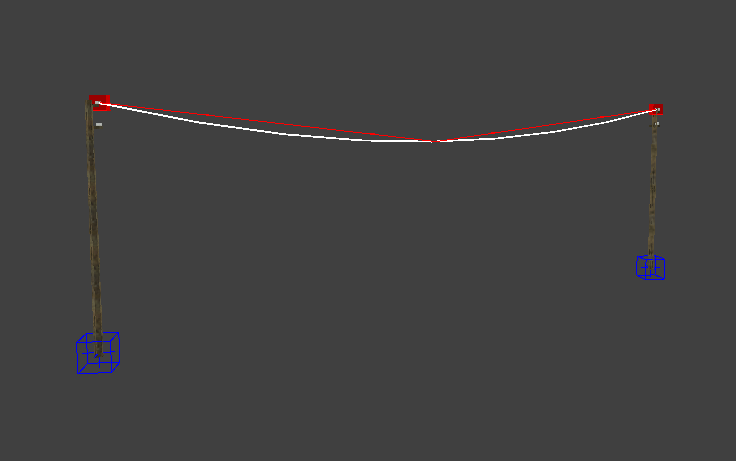
Wires use a script_brushmodel linked to two script_origin entities at each end.
- Create a long thin brush for the wire (texture as cable/metal).
- Convert it to script > brushmodel.
- Press N, set
targetnametowire. - Create two point entities (right-click empty grid > info > any, then in N window change
classnametoscript_origin). - Place one script_origin at each end of the wire.
- On the wire entity, add
targetkey with a unique value (e.g.,wire1_ends). - On both script_origins, set
targetnameto the same value (wire1_ends). - Alternative: Select wire first, then both origins, press W to auto-link.
Radiant: Wire brushmodel with two script_origins and auto-link lines
3. Creating Animated Shutters (Correct Pivot Method)
Shutters rotate randomly around a custom hinge pivot defined by an origin-textured brush. No script_origins or targets needed.
- Create the main shutter brush (rectangular, wood/metal texture).
- Position it in its closed/rest pose against the wall or frame.
- Create a small helper brush centered exactly on the hinge line (vertical edge for side swing, horizontal top edge for overhead).
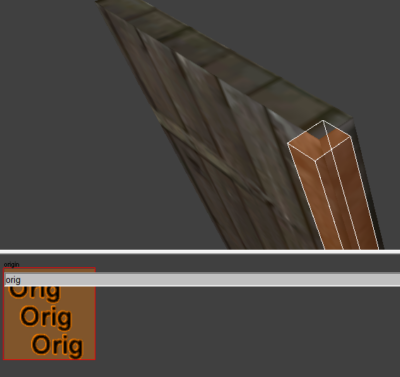
- Apply the origin texture to all faces of the helper brush (search “origin” in textures > common/tools).
- Select both brushes (shutter + origin helper).
- Right-click > script > brushmodel (merges into one entity).
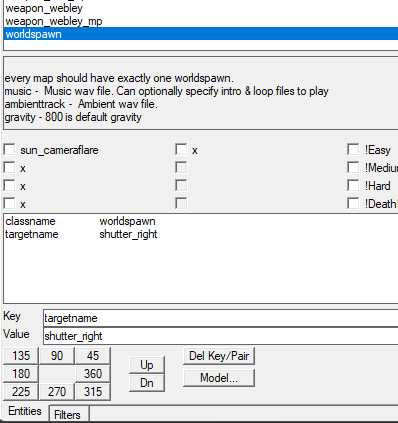
- Press N, set
targetnameto one of the supported values below.
| Targetname | Grouping / Notes |
|---|---|
shutter_left |
Base left-facing (grouped as left) |
shutter_right |
Base right-facing (grouped as right) |
shutter_left_open |
Treated as left group |
shutter_right_open |
Treated as left group (script quirk) |
shutter_left_closed |
Treated as left group |
shutter_right_closed |
Treated as right group |
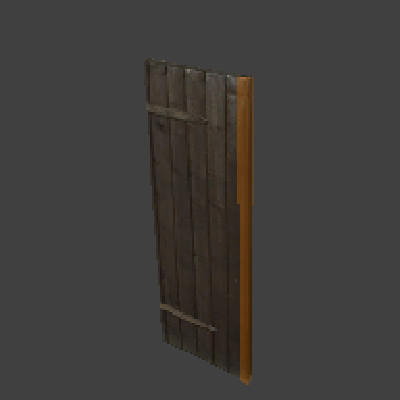
Shutter brush next to origin-textured helper brush (before merging)
Origin texture applied (textures window)
Entity info window (N key) with targetname set
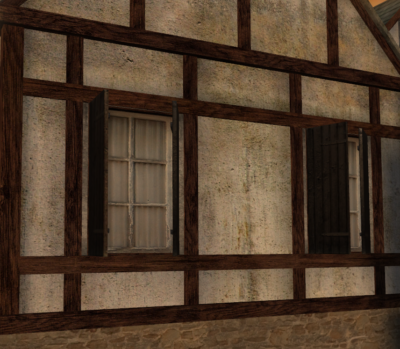
In-game: Animated shutter jiggle
Important: The origin brush is invisible in-game and only defines the rotation pivot. Test the hinge in Radiant using the R key (rotate mode) after merging—drag in 3D view to confirm perfect swing before compiling.
Final Steps
- Duplicate and place multiple wires and shutters around your map for variety.
- Perform a full compile (BSP → VIS → Lighting).
- Launch with
/devmap yourmapname. - Enjoy subtle, realistic ambient movement!
If effects don’t appear or behave strangely (e.g. over-rotation, no ambient sound), enable /developer 1 in console and check for script errors. Common issue: the script being called twice (once by _load.gsc and again manually).